
Run the job
You guessed the hours. The job lost money.
With JobsiteBooked's time tracking app for contractors, each crew member clocks in and out of every visit by phone. Those hours land on each job's profit, so you see which work pays and which doesn't.
- Every visit timed, with the crew's note on why it ran long
- Each job's hours, costed at your labor rate
- A weekly timesheet you approve, then export for payroll
- Free trial, no card
- Month to month, cancel any time


Where it sits
Time tracking sits in Run the job
Land the job
Online booking · Estimates · Review requests · Marketing · Website
Run the job
Scheduling · Crew app · Job photos · Time tracking · Integrations
Bill the job
Invoicing · Payments · Expenses · QuickBooks sync · Reporting
Bring them back
Texting & inbox · Reminders · Customer portal · Customer list
Time tracking
You can't price what you never timed
Three places the hours slip past you, and what the clock-in changes.
The next quote
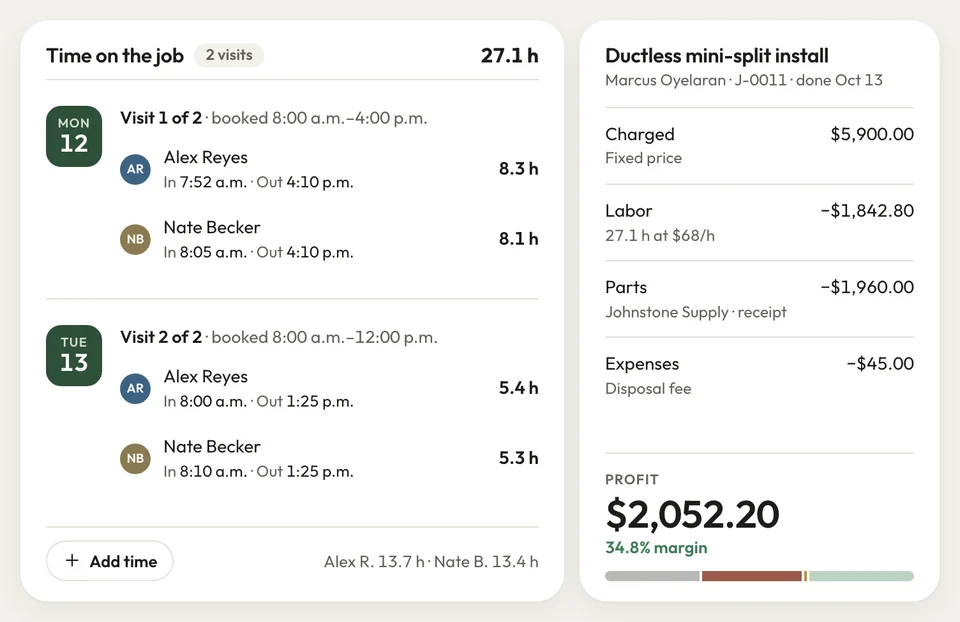
Price the next job from real hours
You priced the vanity swap by feel, and the visit ran three hours past your guess. Nobody wrote the hours down, so the next quote repeats the loss.
Your tech taps clock in on their phone when the visit starts, and clock out when it's done. The job shows those hours at your labor rate, beside what you charged.
- Clock in and out on each visit
- Hours costed at your labor rate
- Profit per job, labor counted
Ran long
Every long job comes with its reason
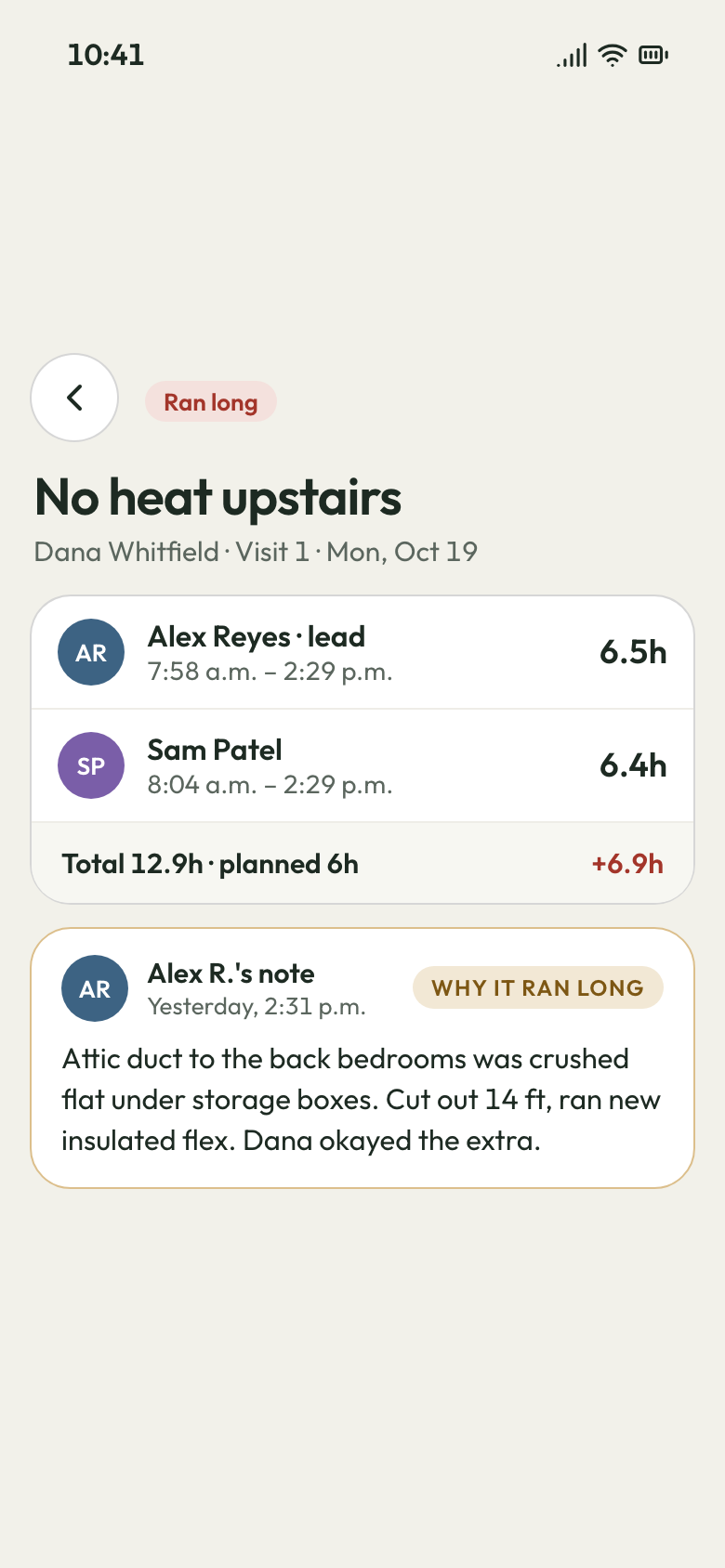
The tear-off was figured for one day and took two. Nobody wrote down why, so the next roof gets figured the same way.
Each job shows its real hours from the crew's clock-ins. The crew lead's visit note says why it ran long: a late shingle delivery, rotten decking, a homeowner change. Both stay on the visit, ready when you figure the next roof.
- Real hours on every visit, per crew member
- Visit notes: why it ran long, in the crew's words
- Notes from the crew page or the Android app
The visit's hours and the crew's note Friday payroll
The week's hours, approved and ready for payroll
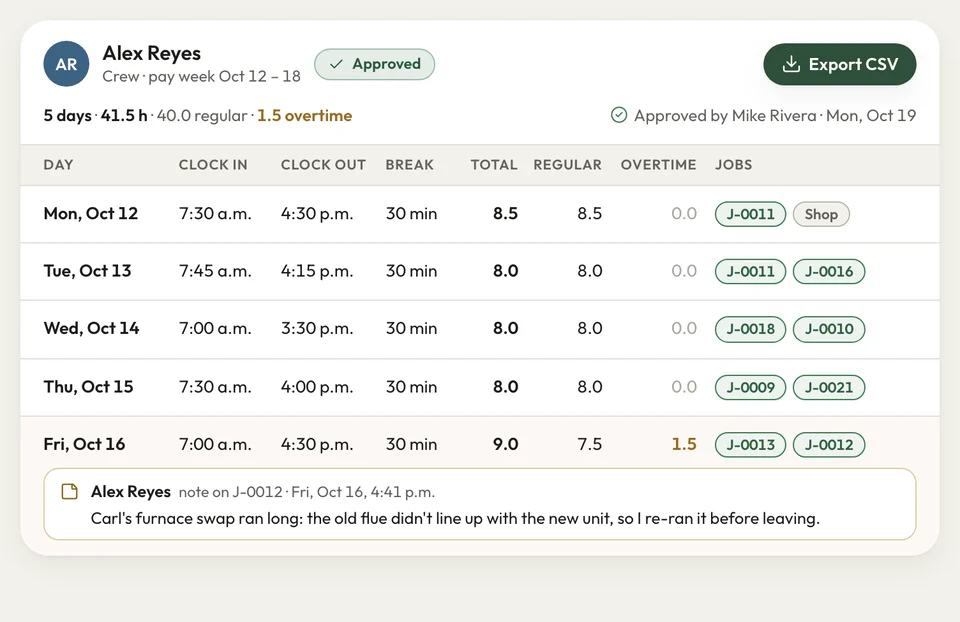
Friday night, your painting crew lead texts you hours from memory, and you add them up at the kitchen table. The two-day interior took three, and nobody can say whose hours went where.
Every clock-in lands on the weekly timesheet and on that job. You approve each person's week and download the payroll hours as a CSV. The interior's job profit shows what the extra day really cost.
- Hours by person and day, totalled by week
- Approve, edit or add an entry
- Payroll hours downloaded as a CSV
Weekly timesheet


I priced service calls by gut for years. Once my crew clocked in on every visit, I saw which calls were losing me money.
How it works
How the hours reach your payroll
Clock in
Each crew member opens the visit on their phone, clocks in, and clocks out when they leave.
Approve
You check each person's week on the timesheet, correct an entry if needed, and approve.
Export
Download the week's payroll hours and send them to your bookkeeper or payroll service.
Related features
What works with the clock-in
- See Crew app
Crew app
Today's visits, directions, gate codes and checklists on each crew member's phone.
- See Scheduling
Scheduling
Drag visits around the day and week view; your crew clocks into them.
Reporting
Job profit with labor counted, plus money owed and sales tax by rate.
Next: Bill the jobSee Reporting
Questions about crew hours
Can my crew clock in and out of each job on their phone?
Can I review and approve my crew's timesheets?
Does it work with payroll?
Can I see how many hours went into each job?
Can I show a customer how long we were actually there?

We do the setup
Price next week's jobs from this week's hours
We do the setup: your services and prices, your customers, each crew member's personal link to the crew app, and your website. Your crew opens their first visit and clocks in.
- Free trial, no card
- Month to month, cancel any time